
- Windows
BlueHarbor
BlueHarbor receives audio over Bluetooth from iOS, iPadOS and Android smartphones and tablets and from macOS computers, and plays it through the speakers or headphones connected to your Windows PC.
AvailabilityWe are preparing to release BlueHarbor on the Microsoft Store.

How it works
BlueHarbor uses the Bluetooth support built into Windows, so no drivers or extra hardware are needed. It delays playback slightly so that audio is less likely to drop out when the connection is unstable. When part of the audio is missing, it smooths the join to reduce noise.
-
Connect and play
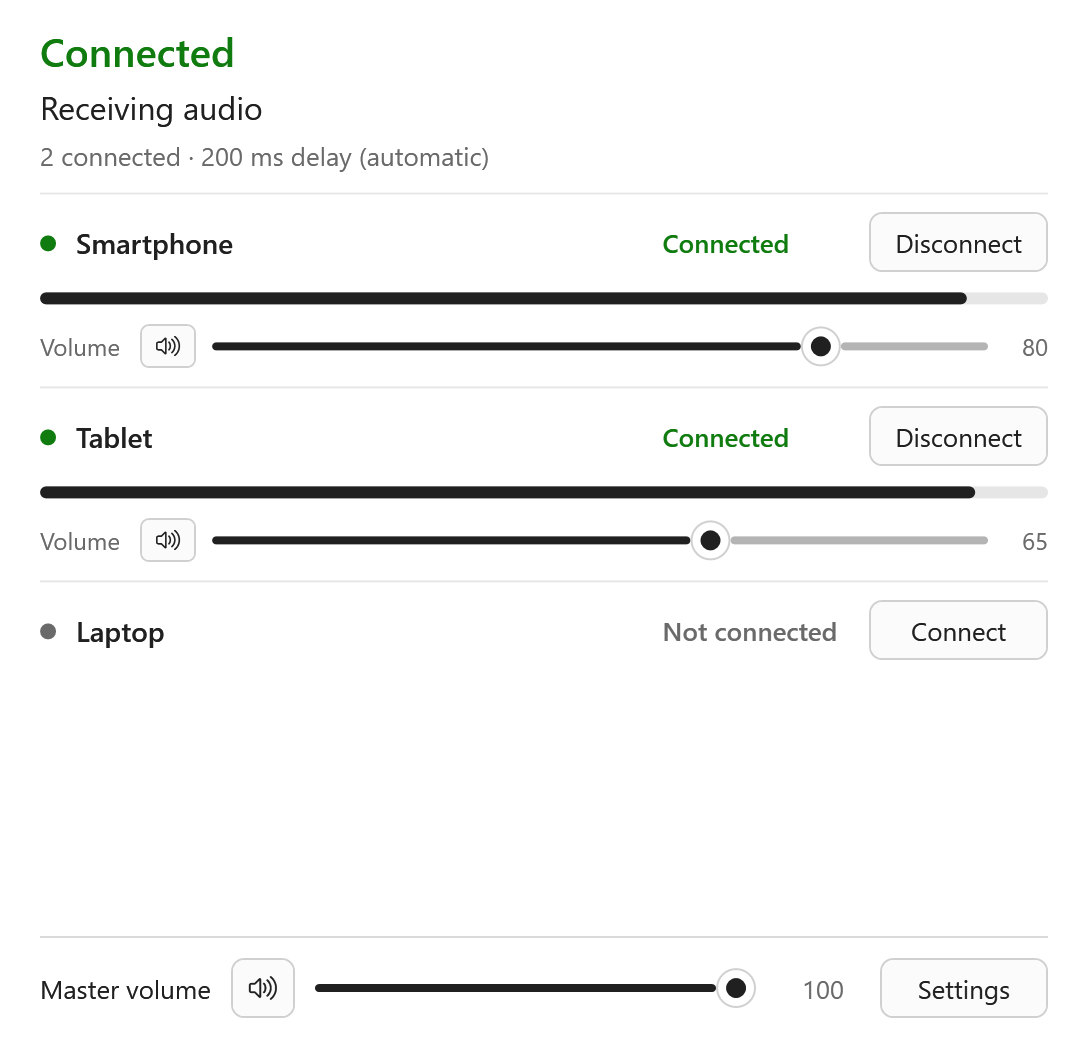
Pair your phone or tablet with this PC in Windows Settings (Bluetooth & devices). Start BlueHarbor, click “Connect” next to the device, then play music or video on the device and choose this PC as the audio output. When the bar under the device name moves, the sound is coming out of the speakers or headphones connected to the PC. If the PC does not appear as an output, set this PC’s device type to headphones in the device’s Bluetooth settings. The first time audio is received, Windows asks for microphone access. It is used only to capture the received audio; BlueHarbor never captures sound from a microphone connected to the PC.
-
Add a second device or a computer
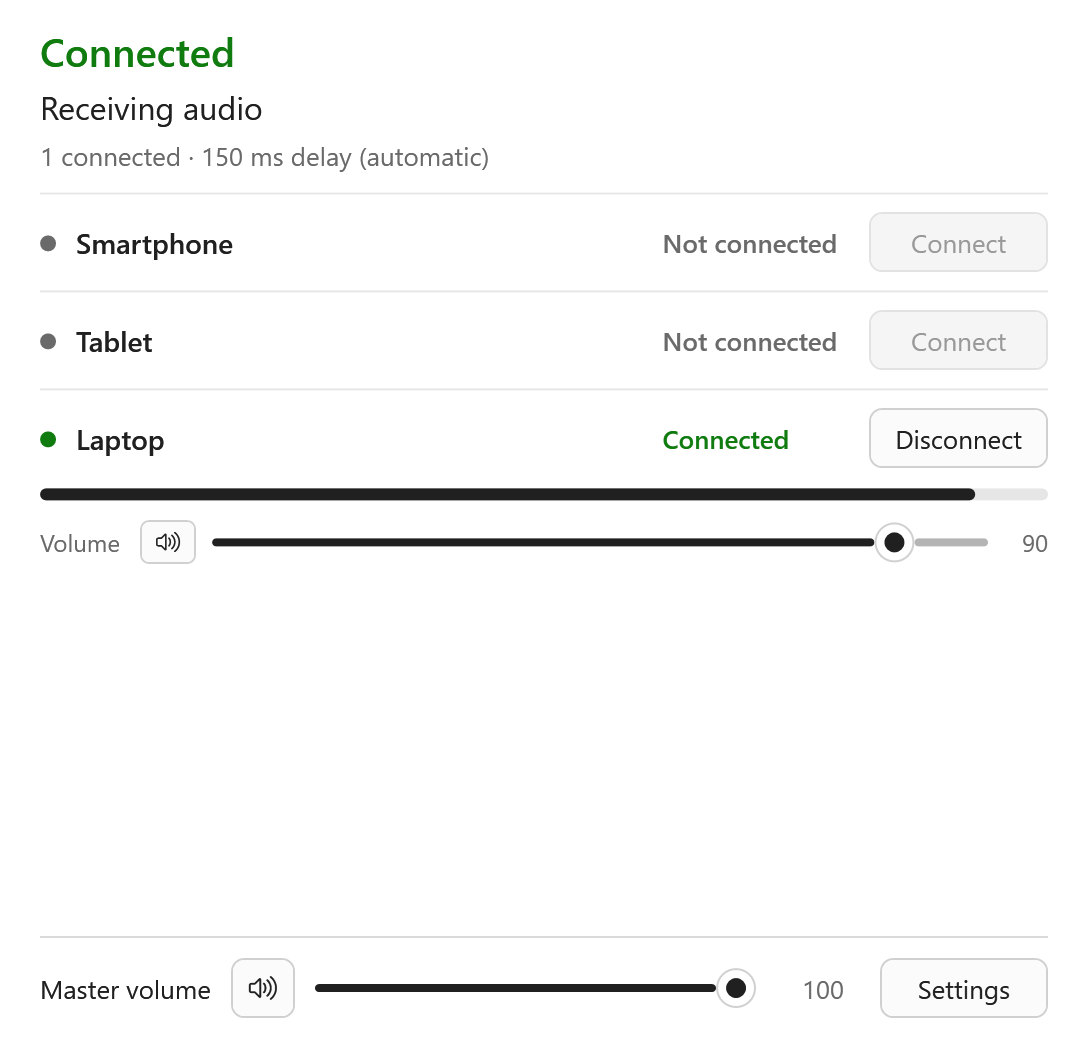
You can receive from two devices at the same time and set the volume of each. Disconnecting one leaves the other playing. To use a macOS computer, choose this PC as the output in the computer’s Sound settings. BlueHarbor also sets up the hands-free connection the computer needs, so nothing has to be installed on it. While a macOS computer is connected, no other device can be connected at the same time.
-
Fine-tune playback
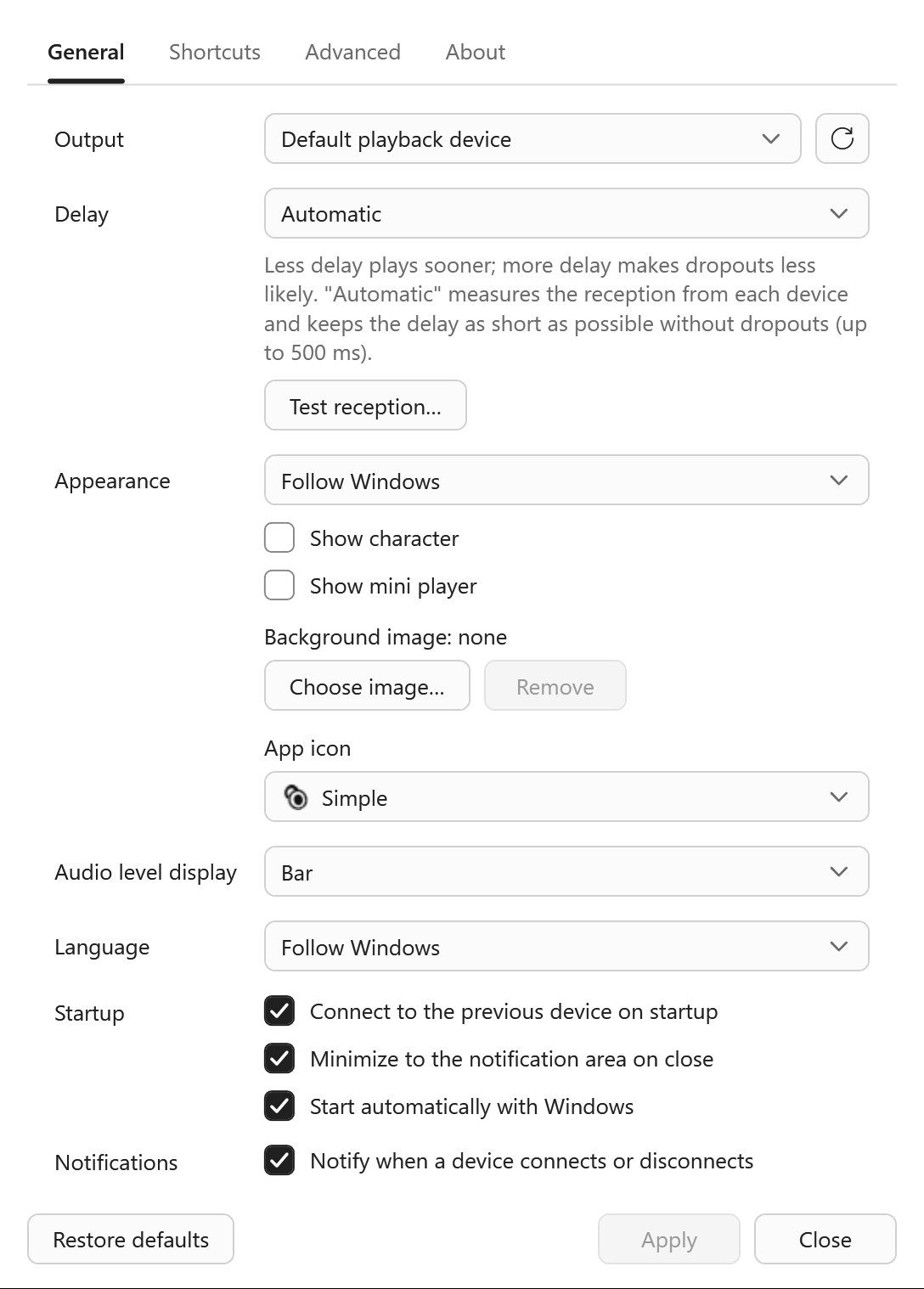
The playback delay can be set in 6 steps from 100 ms to 1000 ms, or to Automatic, which adjusts it to the reception conditions. You can also test reception for 60 seconds to get a recommended delay. There is an always-on-top mini player, and keyboard shortcuts for mute and volume. The app follows the Windows light or dark theme and can be shown in 11 languages.
Overview
- Name
- BlueHarbor
- Platform
- Windows app
- Price
- Free (the free version plays audio for up to 10 minutes a day; the “BlueHarbor Unlimited” add-on, a one-time purchase whose price is not set yet, removes the limit)
- Availability
- Preparing to release on the Microsoft Store
- Requirements
- Windows 10 (version 2004 or later), Windows 11
- You will need
- A Bluetooth adapter (built-in or USB)
- Source devices
- iOS, iPadOS and Android smartphones and tablets, macOS computers
- Languages
- Japanese, English, Chinese (Simplified and Traditional), Korean, Spanish, French, German, Italian, Portuguese (Brazil), Russian
- Provider
- KOSNiZ
- Privacy policy
- Privacy policy
- Contact
- info@kosniz.com
macOS and iPadOS are trademarks of Apple Inc., registered in the U.S. and other countries and regions. IOS is a trademark or registered trademark of Cisco in the U.S. and other countries and is used under license. Android is a trademark of Google LLC.